Check caption availability
Paste the video URL. The reader checks available captions first. Checking captions does not mean choosing audio transcription.
Read available captions, find a passage and export the lines you select.
Paste the video URL. The reader checks available captions first. Checking captions does not mean choosing audio transcription.
Use an existing English or Chinese track when available. Automatic captions may split a sentence across several timestamped lines.
Search for a phrase, follow its timestamp back to the video, then select the lines to copy or download as TXT or SRT.
These are two consecutive automatic captions. Overlapping cue times and sentence fragments are retained from the source track.
1
00:00:08,960 --> 00:00:13,599
seven b-52s take off from barksdale air

2
00:00:11,519 --> 00:00:16,480
force base in louisiana
Source: Desert Storm - The Air War, Day 1 - Animated · The Operations Room · English automatic captions.
This section is not a demonstration. On 27 September 2026 the lecture below was read, searched and exported on vidleaf.app as a guest, without signing in, starting from the box at the top of this page. Captions on YouTube can change, so the same video may give different results later.
The lecture is William Fisher, CopyrightX: Lecture 1.1, The Foundations of Copyright Law: Introduction (12 min 27 s), published on YouTube by the Berkman Klein Center for Internet & Society under a Creative Commons Attribution 3.0 license. The screenshots and excerpts below show its captions as they appeared in Vidleaf's reader.
The first caption lines appeared 3.2 seconds after “Check available captions” was pressed, under the heading “English · Human captions · 250 subtitles”. This lecture had been read on Vidleaf before, so the captions came from the shared cache. A video that nobody had read before took 8.3 seconds the same day.
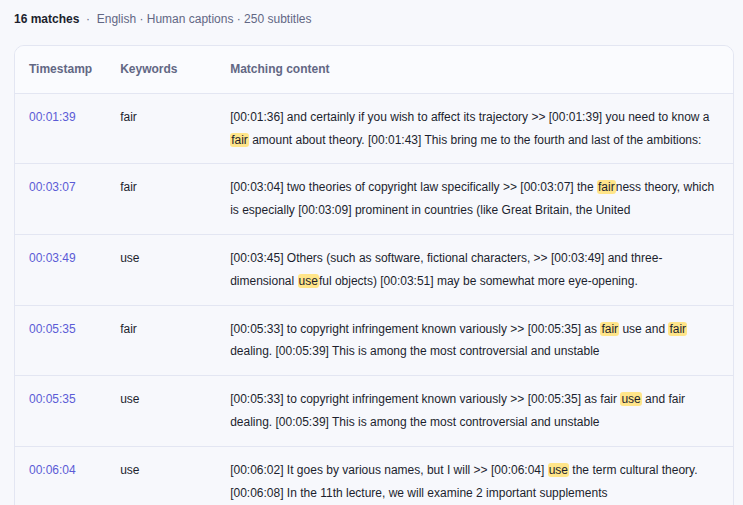
Searching again for "fair use", in double quotation marks, returned a single line: 05:35, “as fair use and fair dealing.”
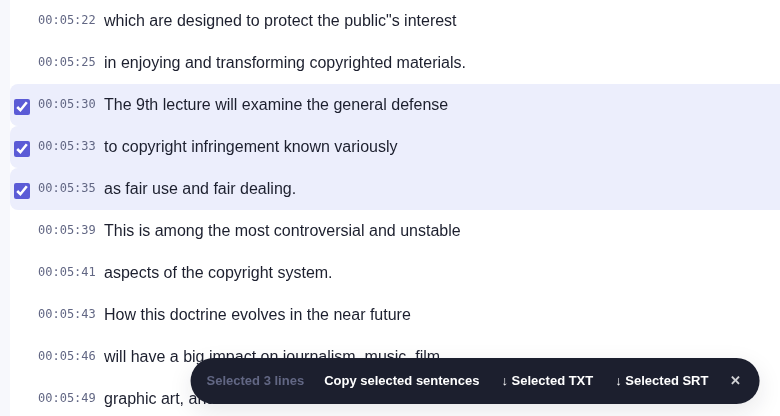
“↓ Selected SRT” downloaded this file, unedited:
1
00:05:30,630 --> 00:05:33,210
The 9th lecture will examine the general defense

2
00:05:33,210 --> 00:05:35,540
to copyright infringement known variously

3
00:05:35,540 --> 00:05:39,090
as fair use and fair dealing.
“↓ Selected TXT” gave the same three lines with times in whole seconds, starting with “[00:05:30] The 9th lecture will examine the general defense”. “Selected Markdown”, in the Export menu, added the video title, the source link, the caption source and, for each line, a link that opens YouTube at that second (&t=330s for 05:30).
public"s interest has a double quotation mark instead of an apostrophe.Captions are text already available from YouTube. Transcription creates text from audio and uses a transcription allowance. Translation creates another language version and uses an AI allowance. None of these makes a quotation authoritative: check the source video when accuracy matters.
Reading an available track does not require you to generate a summary. You choose the additional features you need.
| Message or situation | What to do |
|---|---|
| Video unavailable or private | Check the URL and whether you can watch the public video on YouTube. |
| No captions available | Review the audio duration and your available allowance before choosing transcription. |
| Platform unavailable or request failed | Keep your link and retry later. A failed caption check is not proof that captions do not exist. |
| Sign-in or verification failed | Keep the entered link. Complete sign-in, or request a new verification code if the old one expired, then continue in the reader. |
| What you want to do | Choose | Check before using it |
|---|---|---|
| Edit the wording in a notes app | TXT | The selected language and whether you exported selected lines or the whole track. |
| Use a caption file in a compatible player | SRT | The video edition and synchronization at a few different timestamps. |
| Keep quotations and sources in research notes | Selected Markdown or Copy citation | The source link, source label and whether a translation is machine generated. |
Select a few lines and use a Selected export when you only need an excerpt. Use All TXT or All SRT for the current track. After changing pages, check the selected-line count: earlier selections may still be included. Downloading does not repair overlapping cue times, spelling errors or a sentence split across several caption rows.
A YouTube transcript with timestamps is useful because you can return to the passage. It is still necessary to check the video. An edited, removed or restricted original may no longer match an old link, even when saved text remains readable.
Search for a distinctive term, then read the lines before and after the match. If an automatic caption misspells a name, search for a nearby common word instead. A timestamp opens the corresponding position on the original video. Listen to enough of the surrounding passage to establish who is speaking and what their statement refers to.
Caption lines are not necessarily complete sentences. A qualifier such as “if,” “might” or “not” can be on the preceding line. Select adjacent cues when needed, and check names, numbers and units before sharing. Selecting a short passage is different from asking AI to summarize it: the summary paraphrases, while the quotation should retain the original wording.
Choose an existing track in the language you need before requesting a translation. The interface language does not determine the video's language. Compare machine translations with the original, and do not silently fill in missing words or assign a real person's identity from a voice label. The source label tells you how text was obtained, not that a human has verified it.
For a worked export example, follow the bilingual-notes guide. It works through Harvard's “Justice” lecture on YouTube, from the English human captions to a note with timestamp links.
Yes. Read, search and export subtitled videos without signing in, with a daily limit on new reads. Signed-in users can read subtitled videos without a limit, use transcription, summaries and translation within their allowances, and save history and personal labels. Email code or Google; no phone number needed.
Choose an existing English or Chinese track first. Translation is a separate option when the video has no track in the language you need.
Let the caption check finish first. If it confirms that no captions are available, sign in and review the audio duration, remaining minutes and audio-processing notice before confirming transcription. A rate limit, regional restriction or failed request does not prove that captions are missing.
Transcription uses audio minutes; translation uses AI tasks. Reading existing captions uses neither. See the current allowances.
The downloaded file is saved to your device. Exporting does not publish your personal jobs, reading history or speaker labels. Transcripts, translations and summaries are cached per video and can be reused by other readers; available saved results may also be readable by guests.
Reading results are not published as separate search-indexable pages. Check the source and attribution before sharing an export. See the privacy policy for data handling.
TXT is useful for plain-text notes; SRT includes cue times. Export only the lines you need, keep attribution and review machine-generated text before sharing it.
Explore VidleafOpen the readerContent and source-checking rules