How to make bilingual notes from a video
Switch to the lecture's English human captions, translate them, select complete sentences, then tidy the export into a note of your own.
Author: Vidleaf Docs · Updated September 27, 2026 · Tested on vidleaf.app with the site operator's account, September 24, 2026 · Export format: vidleaf-quote-md/1
The source and this demonstration
Our example is Episode 01, “THE MORAL SIDE OF MURDER”, of Harvard University's lecture series “Justice: What's The Right Thing To Do?” on its official YouTube channel (54 min 56 s). We ran it on vidleaf.app with the site operator's account on September 24, 2026, using the English human captions on YouTube (1,141 lines) and a Chinese machine translation from Vidleaf, which counted as one AI call.
The lecture is a third-party work. This page quotes three sentences with their source and timestamps; it does not offer the full captions or translation. The English screenshots were taken on September 26, 2026 by reopening the same saved result in the English interface; no new translation was requested. Machine translation output may change over time.
1. Open the lecture and switch to the English human captions
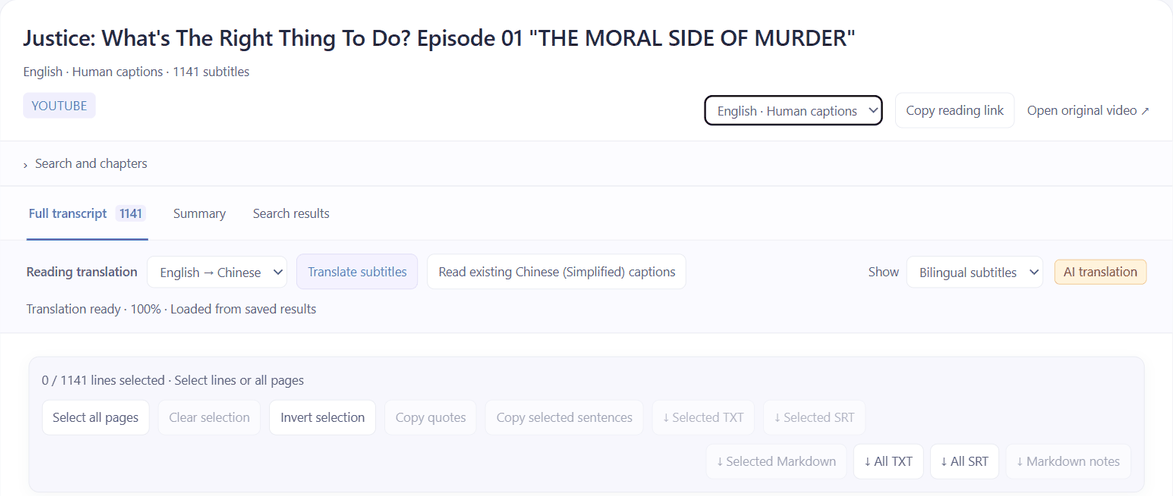
Paste the lecture URL into the transcript tool. This lecture opens on “Chinese (Simplified) · Auto captions” (1,045 lines): YouTube's automatic Chinese translation of the English, not the lecturer's own words.
Choose “English · Human captions” (1,141 lines) in the track menu on the right below the title. Searching, selecting and translating all use this track.
2. Translate and read side by side
Click “Translate subtitles”. A confirmation first shows the duration and the expected usage (here 54.93 minutes and one free AI allowance), and translation starts only after you confirm. When it has finished, choose “Bilingual subtitles” under Show to see the Chinese under each English line.
Reopening the lecture later loads the saved translation instead of translating again.
3. Select complete sentences and export Markdown
This lecture's captions are split finely: many lines hold two or three words, so a single line is often half a sentence. To quote a whole sentence, select its neighbouring lines as well. We selected five lines: one at 00:04:30, one at 00:13:59 and three in a row from 00:15:16. With “Selected 5 / 1141 sentences · Only selected sentences are exported” in the toolbar, click “↓ Selected Markdown”.
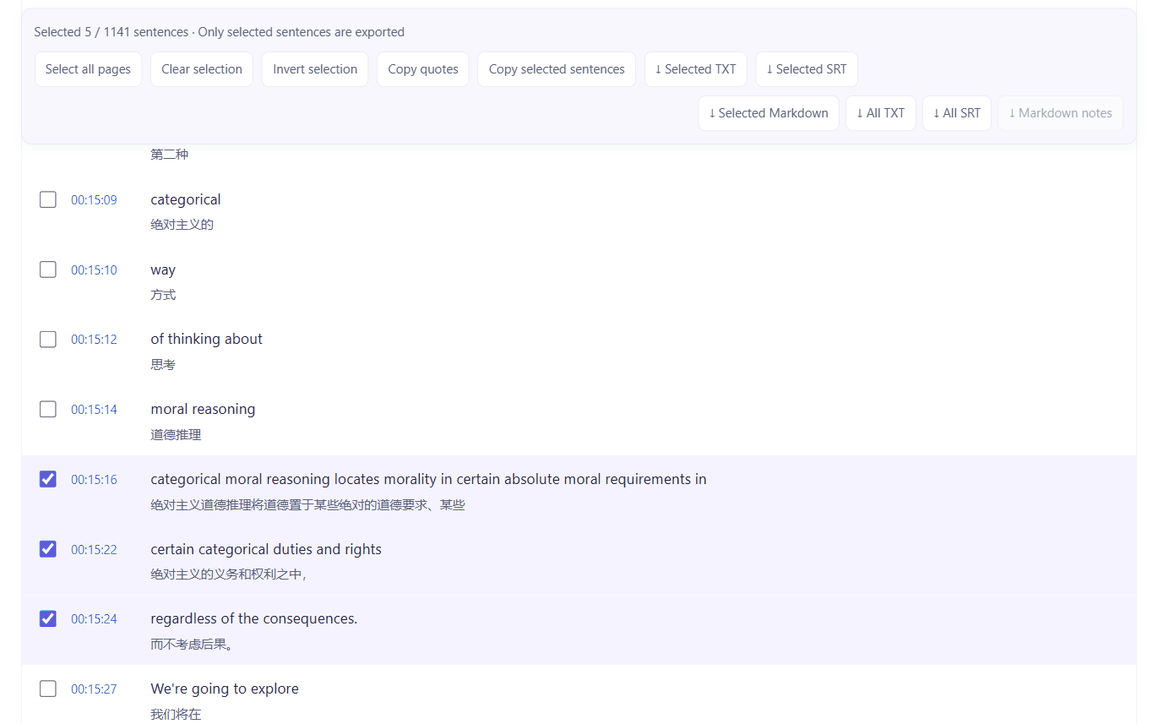
“Selected Markdown” exports only the selected lines: the original, the machine translation, the time range and a link back to the video. It is not the AI summary of the whole video that “Markdown notes” produces. With the interface in English, the field labels in the file are English too. Here is the start of the file and its last three entries:
Justice: What's The Right Thing To Do? Episode 01 "THE MORAL SIDE OF MURDER"
Source: https://www.youtube.com/watch?v=kBdfcR-8hEY
Caption source: platform human captions
Exported: 2026-09-24T13:43:26+00:00 · Vidleaf
00:15:16–00:15:22 · Unassigned
Original: categorical moral reasoning locates morality in certain absolute moral requirements in
Translation: 绝对主义道德推理将道德置于某些绝对的道德要求、某些 [machine translation]
Link: https://www.youtube.com/watch?v=kBdfcR-8hEY&t=916s
00:15:22–00:15:24 · Unassigned
Original: certain categorical duties and rights
Translation: 绝对主义的义务和权利之中, [machine translation]
Link: https://www.youtube.com/watch?v=kBdfcR-8hEY&t=922s
00:15:24–00:15:27 · Unassigned
Original: regardless of the consequences.
Translation: 而不考虑后果。 [machine translation]
The file also contains a few comment lines starting with <!-- that record the export format, the caption track, the AI-generation label and each line's number. They are not displayed when rendered and are not shown here. “Unassigned” means no speaker has been assigned.
4. Tidy it into your own note
The export is plain Markdown, so it works in any note app that understands Markdown. For this guide the tidied text went into Notion on the web, which laid out the headings, quotes and timestamp links. The changes were:
- Removed “· Unassigned” after each heading; these notes did not need speakers.
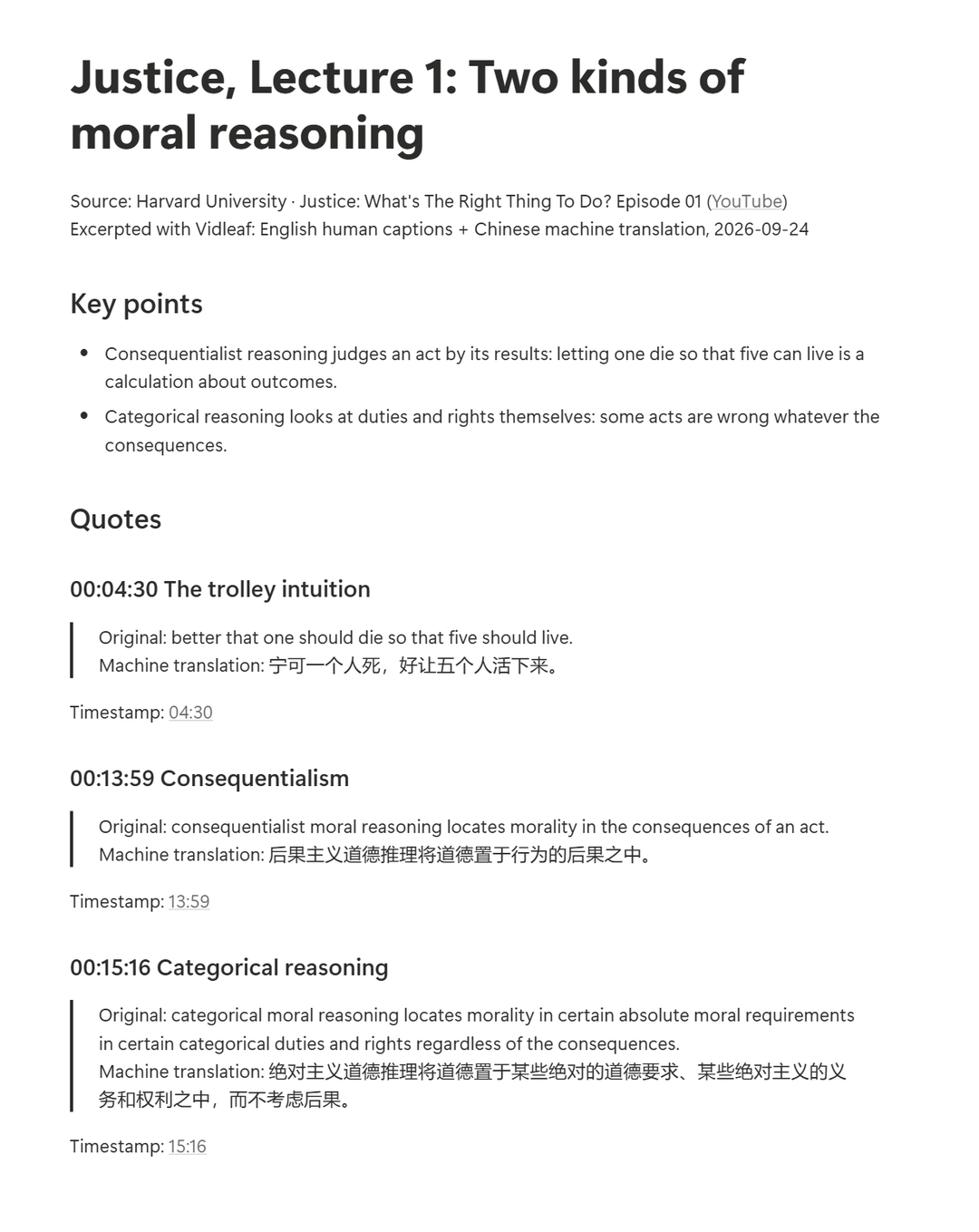
- Joined the three lines from 00:15:16 into one sentence, with one original and one translation.
- The 00:13:59 line ends with the start of the next sentence (“In the state of the” in the English and a lone 在 in the Chinese), so that fragment was deleted.
- Gave each quote a heading with its start time and a short title of our own and added two key points at the top.
- Kept the machine-translation label and the timestamp links, so every quote can be checked against the video later.
The finished note
This is the tidied note in Notion. The key points are our own summary; everything else comes from the export.
Check before quoting
Human captions can still differ from what was said, and splitting can spread one sentence over several lines. Machine translation can get terms wrong or lose tone. Before quoting, follow the timestamp link and listen to the passage.
This page reproduces three sentences from the lecture as an example, not its full captions or translation.